

Choosing the Right WordPress Theme for Your Business
How to evaluate themes based on speed, support, and customization options. We’ll walk through what makes a theme truly fit your needs.
Read articleOverwhelmed by plugin choices? We’ve tested what actually works. Here’s the toolkit that covers ninety percent of real-world needs.

Here’s the thing about WordPress plugins — there’s no shortage of them. At last count, the official repository had over 58,000 options. But more doesn’t mean better.
We’ve spent years working with WordPress sites across Malaysia and beyond. We’ve seen what happens when you install too many plugins (site gets slow). We’ve also seen what happens when you try to do everything with just the core (you’re limited). The sweet spot? A curated set of plugins that handle the jobs WordPress doesn’t do natively.
This guide focuses on plugins we actually use in production sites. Not trendy ones. Not ones with flashy marketing. Just reliable tools that solve real problems without requiring you to touch a single line of code.
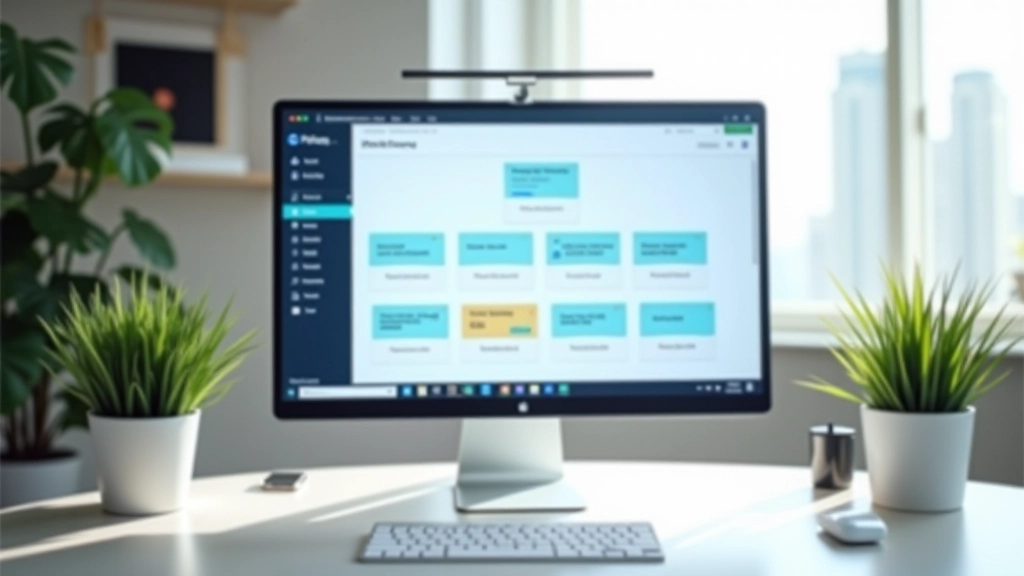
These five plugin types handle about 90% of what a typical WordPress site needs. Let’s break down each one.
Protect your site from unauthorized access, malware, and attacks. Security plugins monitor activity, manage user permissions, and handle backups.
Optimize your content for search engines. These plugins handle metadata, sitemaps, readability analysis, and help you target the right keywords.
Optimize images for web, create responsive galleries, and manage media libraries efficiently. Smaller files mean faster sites.
Speed up your site with caching, lazy loading, and database optimization. Every millisecond counts for user experience and SEO.
Build contact forms, email capture, and customer feedback systems without writing code. Collect data directly into your inbox.
WordPress is a target because it’s popular. We’re not trying to scare you — just being realistic. A security plugin doesn’t make your site impenetrable, but it handles the heavy lifting.
Look for plugins that offer: two-factor authentication (2FA), login attempt limiting, malware scanning, and automated backups. You don’t need all features in one plugin. Some sites run three separate security tools because each does something the others don’t.
The top choices in this category have been around for years. They’re battle-tested. You’ll recognize their names if you’ve spent any time in WordPress forums. Updates come regularly, and they’re actively maintained by teams that know security inside and out.
Pro tip: Enable 2FA on your admin account. Seriously. Most breaches happen through weak passwords, not zero-day exploits.


You can’t just write good content and hope Google finds it. Search engines need structure. They need metadata. They need to understand what your pages are about.
A solid SEO plugin handles three main jobs: it helps you write content that search engines understand, it manages how your site appears in search results (the title and description), and it creates sitemaps so search engines can crawl everything.
Most SEO plugins also include a readability analyzer. This tells you if your sentences are too long, if you’re using passive voice too much, or if your paragraphs need breaking up. It’s like having an editor built into your WordPress dashboard.
A one-second delay in page load time can reduce conversions by 7%. In Malaysia’s competitive market, every millisecond counts.
Performance plugins work in three ways: caching (storing static versions of your pages so the server doesn’t have to generate them each time), lazy loading (images load only when users scroll to them), and code minification (removing unnecessary characters from CSS and JavaScript).
The beauty of performance plugins is they do all this automatically. You don’t need to understand how caching works — you just enable it. Your site gets faster. Visitors are happier. Search rankings improve.
Having the right plugins is only half the battle. Configuration matters just as much.
Install your security plugin first. Before anything else. It’ll monitor the rest of your installations. Then set up 2FA on your admin account — this is non-negotiable.
Performance plugins need to be installed early because they affect how everything else runs. Enable caching first, then move to image optimization. Test your site speed before and after.
Don’t just activate and forget. Spend an hour setting up your site information, creating a sitemap, and connecting to Google Search Console. These are one-time tasks that pay dividends.
Before adding more plugins, make sure your site still works. Check forms, check navigation, check that images display properly. One bad plugin can break a lot of things.
Plugin overload is real. We’ve seen WordPress sites running 30+ plugins. The admin dashboard becomes sluggish. Page load times suffer. Updates become chaotic. Before installing anything new, ask yourself: does my site actually need this? Is there a plugin I’m already using that does something similar?
We recommend a maximum of 8-12 plugins for most sites. Some run lean with just 5. Others legitimately need 15. But if you’re counting your plugins in the 20s, it’s time to audit.
This guide is educational information about WordPress plugins and their common uses. Every site is different. The plugins that work for one business might not be right for another. Always test thoroughly in a staging environment before deploying to your live site.
WordPress plugins are powerful because they let you add functionality without touching code. But they’re only tools. The real work is choosing the right ones for your specific situation.
Start with security. Add performance. Configure SEO properly. Add contact forms if you need them. Then stop. That’s your foundation. You can always add more later if a genuine need appears.
The sites that perform best aren’t the ones with the most plugins. They’re the ones with the right plugins, configured thoughtfully, and maintained regularly.
Ready to optimize your WordPress site?
Read: Choosing the Right WordPress Theme